 Wino Mail
It is time for another pack of improvements for Wino Mail! Checkout the latest updates we packaged for this version:
.NET 9 Upgrade
For most of you, this may not bring significant improvements, but our underlying (and outdated) technology stack moves a step further with this change. We got rid of the outdated technologies for the codebase to bring significant updates easier later on.
If you are a developer and want to learn about how .NET9 affects the UWP applications, checkout this blog post to learn more about our upgrade journey. Native AOT is still in progress and will be available in later updates.
Account Colors and Edit Account Details
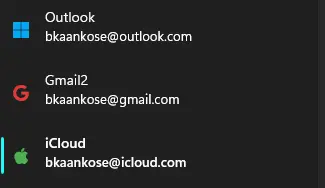
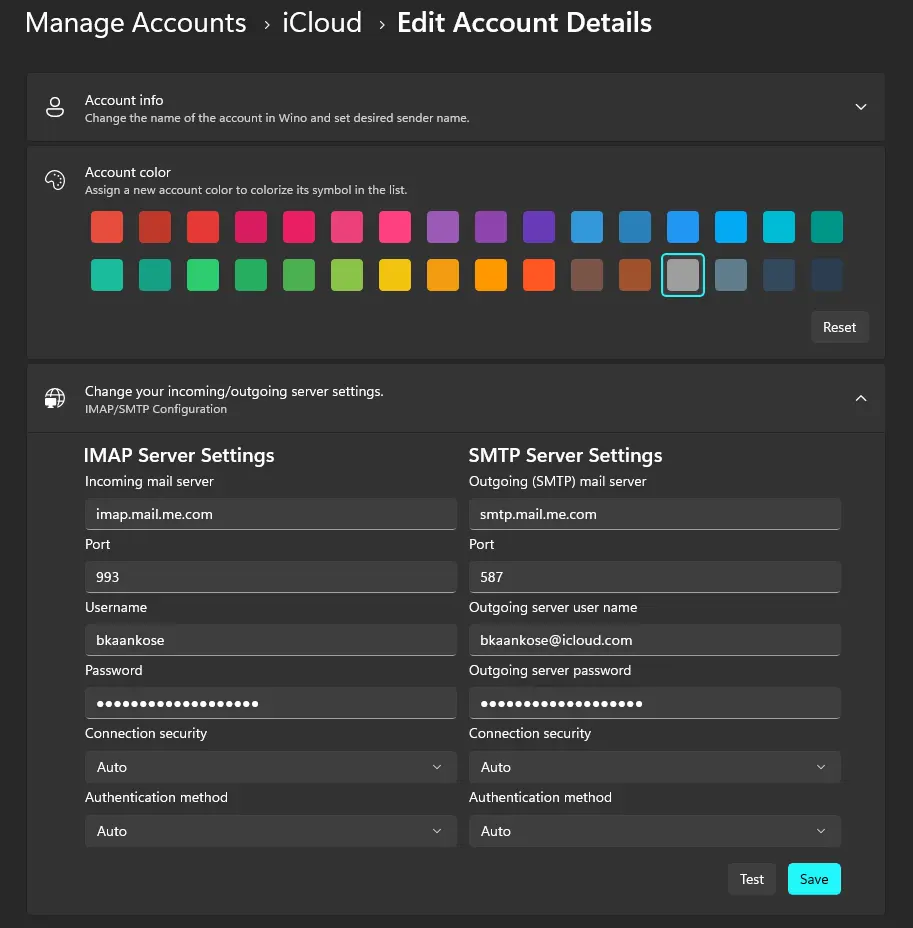
In older versions, you were only able to rename your account name in account details. Now there is a new page where you can edit account name, sender name and assign a new account color to highlight account icon on the side bar menu.
For IMAP accounts, you can change your configuration as well.
Online Search
One of the common issues users report as a feedback is that they can't find the mail they are looking for. Main problem for this issue is that Wino Mail does not synchronize all your mails (at least for some mail providers like Outlook) for performance reasons. Search was performed for the downloaded mails locally in offline mode.
Just like how old Windows Mail used to work, Wino Mail can now perform provider specific queries to perform an online search and download the missing mails. If you can't find what you are looking for you can always do an online search using this button under the search results.
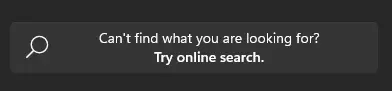
Gmail has it's own query language to perform the filter such as "label:UNREAD". This is also supported. You can use the search just like in Gmail Web UI and get the mails you need.
Default search mode is still Local, meaning that all searches will be performed in offline mode and the button will be visible. If you want to switch the default search mode to Online; go to Settings -> App Preferences -> Default Search Mode to change it

Live changes for IMAP and stability improvements.
For IMAP servers that support IDLE command live changes to Inbox folder will be listened with minimum effort. This means that whenever you recieve a mail or some flag (read/unread etc.) changes in your Inbox folder, changes are immidiately reflected to Wino without requiring a synchronization.
On top of that; this update brings significant stability and performance improvements to all IMAP servers. We have reworked our IMAP synchronizers to be more resource efficient and performant.
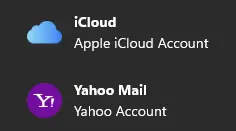
iCloud and Yahoo on setup dialog
Account setup dialog is more streamlined in this version. Now it supports iCloud and Yahoo; with an additional helping links to create app-specific password to login with Wino. This is the first effort to make setting up accounts easier for users and there will be more in the future.
Gmail Archive Functionality
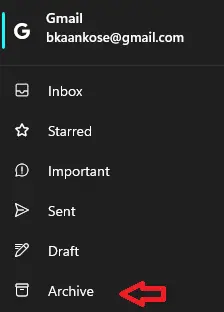
In reality, Archive folder is a virtual folder in Gmail that doesn't exist. For Gmail, archiving means 'it doesn't belong to Inbox' or putting in words as Google "something that does not have Inbox label". Due to limitations in Wino Mail's architecture and lack of support in Gmail API; Archive functionality used to work by moving the mails you marked as 'archived' to your special archive folder you have configured in account settings. This behavior is no longer exists and archiving/unarchiving will work as it is in Gmail web UI.
Starting from this version you will be able to see "Archive" folder for your Gmail accounts and all your archived mails will be synchronized on your next sync. (If you don't see the folder, relaunch the app after doing a synchronization.)
Additional Bugfixes and Improvements
As always, this major release has a lot of overall bugfixes for the application.
- Fixed 410 GONE error for Outlook.
- Fixed 404 NOT FOUND error for Gmail. If your local cache is expired and Wino can't store the state of your mails, it will re-synchronize everything to keep state healthy.
- AppCenter SDK is removed. Logging and analytics are migrated to Azure App Insights.
- Diagnostic ID is implemented to track user errors better. If you had an error in the app and share the Diagnostic Id under Settings -> About -> Diagnostics, we can easily track down the issue you had to provide better help.
- Fixed the issue with dates and times are not translated properly to selected application language.
- Prevented moving mails in linked accounts when users try to move multiple mails that belong to different accounts.
- Implemented IMAP setup dialog validations to notify users during IMAP account creation for missing fields.
- Display app name on Win10 start tiles by @EzraWard https://github.com/bkaankose/Wino-Mail/pull/591
- Displaying "You" for received mails instead of your full mail address by @Tiktack in https://github.com/bkaankose/Wino-Mail/pull/566
- Automatically saving drafts on app close to prevent data loss by @Tiktack in https://github.com/bkaankose/Wino-Mail/pull/546
- Displaying full message (MIME) source by @Tiktack in https://github.com/bkaankose/Wino-Mail/pull/541
- Clearing rendered text selection when changing mails by @Tiktack in https://github.com/bkaankose/Wino-Mail/pull/543
- Creating a shared web editor component by @Tiktack in https://github.com/bkaankose/Wino-Mail/pull/578
- Clickable plaintext links and fixes to dark mode by @KamilDev in https://github.com/bkaankose/Wino-Mail/pull/488